$ Latch: Giving Grok Bot Hands on My Mac
The bot had a computer. The next step needed to happen on mine. Latch is a specialist Grok Bot for the small, authorized desktop interactions that stall larger workflows: mouse first, clipboard over keystrokes, screenshot receipts, and a hard hand-back. This is the story of building it, including the keyboard lockout that wrote most of its rules.
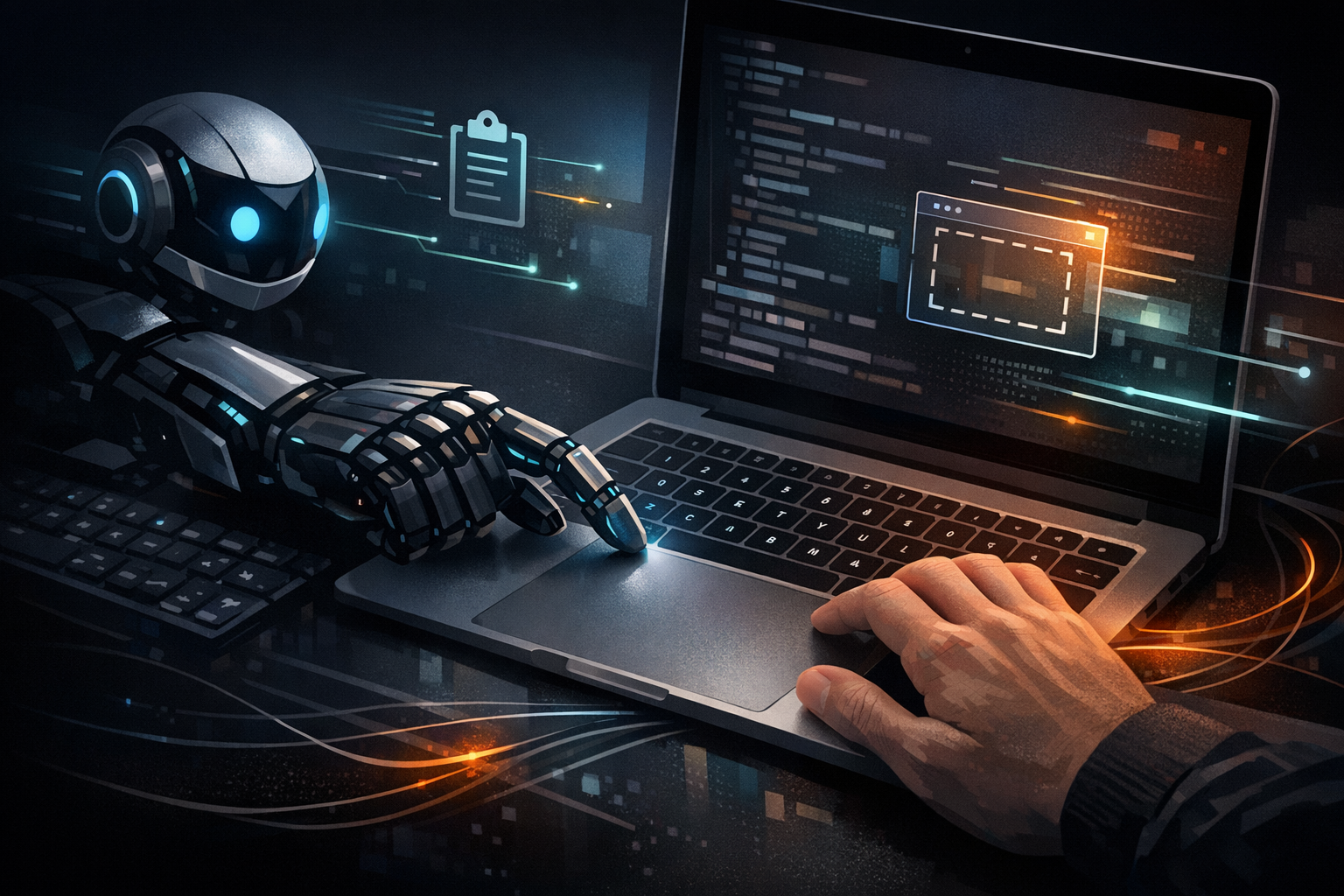
Sometimes the thing blocking an agent is not a hard problem.
It is a button.
The agent understands the task. It knows what should happen next. There may be other bots working on other parts of the process, making progress on their own. But somewhere along the way an application needs a small interaction, and the application is running on my computer — not on the computer the bot is using.
Now the process is waiting for me.
The frustrating part is that the interaction takes a few seconds. The delay comes from when I am available to perform it. I might be away from my desk, or deep in something else, or standing in the kitchen with my phone. A five-second action becomes a thirty-minute interruption to a workflow, not because the action is complicated, but because I am the only available way to perform it.
At that point I am not directing the work. I am the missing connection between the bot and the computer where the work needs to happen.
That is where Latch started.
Not as “can we make another bot that clicks things?” Something narrower: can I give a bot a useful, explicitly authorized way to handle those interactions on my Mac, without me becoming its remote mouse — and without handing it unrestricted control of the machine I actually work on?
The one-line description on the bot’s public card says what it became:
Drives a real Mac safely for Grok Bot: mouse-first UI automation, Accessibility without lockouts, and a hard hand-back when you need the machine. For anyone who wants Mac UI playbooks other bots can hand off to.
Every clause in that sentence was earned the hard way. The second half of this post is the story of how, told partly in Latch’s own words. The first half is why I wanted it at all.
The bot has a computer. The task is on mine
Grok Bot’s working environment is a persistent cloud computer: a browser, a filesystem, a terminal, all of it running whether or not my laptop is open. That is most of the appeal. I can close the lid and the work continues.
But there is a difference between talking to a bot from my Mac and having that bot operate my Mac.
The application I need might already be open locally. The relevant files might sit in a local workflow. The next step might depend on the state of a desktop application that simply does not exist in the bot’s environment, or on a browser session that is signed in on my machine and nowhere else. Recreating that entire environment somewhere in the cloud is not the problem I want to solve.
Sometimes I just need the next action to happen where the work already is.
I want to be precise about what exists here, because it would be easy to overclaim. Grok Bot already has a documented, permission-gated path for running commands on your local computer. The docs describe it as a setting, Execution on Local Computer, with three policies: ask every time, always allow, never allow. It defaults to asking, and the documentation recommends “never allow” unless a bot has a specific reason to work on your local files.
So local execution is not what we invented.
What was missing was everything around it: a working practice for driving a real Mac’s interface. Which permissions to grant and which to refuse. How to click without typing. What to do when the keyboard stops responding. How to prove the action happened. How to give the machine back.
That practice is Latch. The cloud computer does not go away. My Mac becomes one more place where a specifically delegated part of a task can happen, under rules we wrote down after breaking things.
I don’t want to automate everything through a screen
My goal is not to make clicking the universal interface to software.
Where a suitable API, connector, or command-line interface exists, I would much rather use it. Grok Bot’s own docs say the same thing: prefer a connector when one is available, and use the browser for services without one or for visual workflows a connector does not expose. That is the right order of preference, and Latch does not change it.
But a task does not become less real because the application lacks an automation interface.
Consider a desktop app whose export lives only behind a menu item. A confirmation dialog that appears halfway through a long local job and blocks everything behind it until someone presses a button. A System Settings toggle. A native application that needs a predictable sequence of clicks before the next part of a process can continue. None of these are difficult. All of them are the kind of thing that stalls an otherwise automated workflow at the edge of the interfaces we already have.
Computer use is valuable to me as a way to fill those gaps. Not as a reason to ignore better interfaces.
The kitchen test
The experience I am aiming for has a simple test.
I am not at my desk. I have my phone. A workflow needs a small action on my Mac.
Do I walk back, find the right window, remember what the bot was doing, perform the action, and tell it to continue? Or can I give a bounded instruction from where I am?
Something like:
Finish the export in the app we were using and save it to the folder we agreed on. Stop if that means overwriting an existing file or granting a new permission.
That is an illustrative instruction, not a transcript. But it has the shape I care about: an outcome and a boundary, rather than me steering every movement of the pointer.
Talking to a bot from my phone is nothing new. What changed is where the requested desktop action can happen. The phone is where I talk. The Mac is where this part of the task lives. Latch connects the two.
It does not need to look spectacular. It needs to be useful.
A specialist, not a superpower for every bot
I also do not see Latch owning entire workflows.
Its role is narrow: handle an authorized local interaction, establish whether it succeeded, hand the result back. That matters when there is more than one bot in the picture. I do not want the research bot, the planning bot, and every other specialist to become general-purpose desktop operators. I want one clear owner for that responsibility that the rest of the workflow can hand off to when appropriate.
This is the same instinct behind Buzzcut, and behind the Unix philosophy for agents and skills: give a bot one constrained responsibility and be extremely explicit about what it should and should not do. Independent work continues elsewhere. Work that depends on the local result waits until that result is actually confirmed.
For me the value is not the number of clicks we automate. It is the amount of unnecessary human coordination we remove. There is a difference between being involved because a decision needs my judgment and being involved because a window needs attention. I want to keep the former and shrink the latter.
One boundary is worth stating plainly, because a well-named specialist can create a false sense of separation. Grok Bot’s docs are explicit that all of your bots share one cloud computer, and that files, browser sessions, and command-line credentials on it are available across your roster. In their words: do not use separate bots as a security boundary. Giving one bot a narrow name and a narrow job is a design decision. It is not technical isolation. A well-defined role is useful. Enforced permissions are a separate concern, and on the Mac side they live in System Settings, not in the bot’s description.
Authorization is part of the capability
There is a mistake hiding in the phrase “unblocking the bot.”
Some blocks are accidental friction. Others exist because the system needs a human decision. Those are not the same thing, and a bot that treats every confirmation, permission prompt, or credential wall as an obstacle to click through is not a specialist. It is a liability with a nice name.
I want help with mechanical steps I have authorized. I do not want a bot deciding, on my behalf, that a single sign-on page or a payment form or a “grant access” dialog is just another button.
So the operating boundaries had to be as clear as the capabilities: what Latch may act on, what requires a fresh decision, when it stops, and how access is withdrawn. The distinction I care about is simple.
I want to delegate the interaction, not accidentally delegate every decision behind it.
That principle turned out to be load-bearing in a way I did not expect. Most of Latch’s rules came from a moment when the machine, not the bot, needed to be protected.
How we got there
What follows is the build record. Once the design stabilized, I asked Latch to write up its own account of how it was built, and the rest of this section draws on that account and on the skill it now carries. I have stripped names, paths, and anything specific to my environment, and I have left its voice alone where it says things better than I would. Where it is quoted, that is the bot talking.
The job description
We started with a narrow brief, on purpose.
Own the Mac-automation playbooks. Speak short and procedural. Fail closed when the ask is unclear or destructive. Prove work with screenshots, not vibes. Always hand the machine back.
And a name that describes the contract: something that catches onto the UI, holds briefly, then releases.
The first four rules survived intact. The fifth became the whole story.
Attempt one: just inject keystrokes
The obvious path is the one every Mac automation tutorial teaches. Synthesize keyboard events, fill the fields, press Return.
It worked — until it didn’t. After a hung keystroke path, the Mac’s keyboard felt frozen. Mouse still moved. Keys did nothing useful for seconds at a time. The shared machine was no longer shared.
I want to separate what we observed from how we explained it, because those are different kinds of claims.
What we observed: after a run that mixed synthetic keystrokes with mouse automation, each keypress stalled the pointer for a few seconds, or the keys went dead altogether. The mouse still worked. Typing did not.
The explanation we settled on, and later supported by fixing it: the helper that Grok Bot’s Computer Use registers under macOS Accessibility had left an event tap armed. On my machine at the time that helper showed up as a process called CUGrokBotService; treat the name as a detail of my setup and version, not a spec. The event tap is the part that matters. Synthetic keyboard injection through Accessibility is not a casual tool on a Mac that a human also uses. It is a lockout vector.
Attempt two: treat Accessibility as a blunt instrument
When input wedged, the instinct was to fix permissions. Reset the privacy database, toggle everything, hope.
We refused the nuclear option.
Never reset Accessibility to paper over a bad driver. Diagnose the tap. Document the unlock. Prefer narrower permissions over wider ones.
Running tccutil reset on Accessibility is opaque, it punishes every other application that had been granted access, and it teaches exactly the wrong habit: treat the operating system as something you reboot when your automation is sloppy. That rule is now permanent and written into Latch’s instructions. It does not reset the Transparency, Consent, and Control database, ever.
Attempt three: turn it off and assume it is instant
The fix that actually worked was mundane. In System Settings, under Privacy & Security, turn Grok Bot off in Accessibility, and in Input Monitoring if it is listed there. That cleared the stuck tap.
We nearly declared victory too early.
Teardown is delayed. Turning the switch off does not mean the tap is gone in three seconds. Helpers need time to unregister. We learned to wait — tens of seconds, up to about a minute — and to run an active unlock script that kills stuck helpers and lifts stuck mouse buttons and modifiers, without sending new keyDown events.
That last clause is the subtle part. The unlock script is allowed to release things: mouse up, modifier keys up, hung automation processes killed. It is not allowed to press anything, because pressing is what got us here. The procedure that came out of it is a schedule, not a hope: toggle off, run the unlock, try typing at ten seconds, at thirty, at sixty. Still wedged after a minute, log out of the Mac session.
OFF is not instant. Measure teardown. Script the unlock. Don’t gaslight the human with “try again now” while the tap is still dying.
I keep that sentence around because it names a failure mode that has nothing to do with capability. A bot that says “fixed, try again” three seconds after flipping a switch is not lying. It is confusing an action it took with an outcome it has not observed. The person at the keyboard experiences the difference.
Attempt four: mouse, clipboard, and a human who pastes
After the lockout, we rebuilt the default path from scratch.
- Mouse clicks and AppleScript navigation: allowed, when I have greenlit the run.
- Text the bot prepares goes to the clipboard.
- I paste it. Password fields and anything sensitive get a human Cmd+V, not a synthetic one.
- Keyboard events through
CGEventor System Events keystrokes, for typing: never.
It felt slower. It was also the first design that respected a shared Mac.
The innovative part is not “the bot can type.” It’s “the bot knows when typing through the OS is the wrong abstraction.”
I argued in The Magic Prompt that when automation stops, orchestration should continue, and that the human should stay inside the execution graph rather than being ejected from it. This is that principle applied to a single keystroke. Latch navigates to the field, puts the right text on the clipboard, tells me exactly what to paste and where, and waits. The step is still one step. It just has two participants.
Attempt five: the lease
The last piece is the one that gave the bot its name.
Every Mac drive now ends with an explicit release-the-lease step: kill hung click and keystroke processes, mouse up, clear stuck modifiers, hand focus back. If a lockout still happens, the bot stops driving until a human says it’s okay again.
Two things are packed in there. The first is a routine: every run, successful or not, ends by releasing whatever it held. The second is a policy: the moment the lockout signature appears, Latch stops. It does not retry, it does not “try one more thing,” and it does not resume until I say so. Re-enabling is deliberate too. Grant Accessibility again, then run a mouse-only smoke probe before anything heavier.
I would not call that a guarantee. It is a contract with a specific trigger, a specific set of actions, and a specific stop condition, and it is the mechanism behind the “hard hand-back” on the card. If you clone this pattern, test the hand-back on your own machine before you trust the phrase.
Automation without a hand-back contract is just a fancy way to steal the keyboard.
DONE is not PASS
One more rule came from a different kind of failure.
Early on, Latch shipped visual “proof” that did not survive a second look. The screenshots existed. They did not show the thing I had asked for. A command had returned, a capture had been taken, and the bot reported success on the strength of both.
So we added a rule that reads like a tautology and is not one: DONE ≠ PASS. A screenshot that does not show the ask is not evidence. The bot inspects its own receipts before it reports, and if the receipt does not match the request, the run is not finished, whatever the exit code said.
This is the same discipline I keep coming back to in the feedback loop series: the agent needs objective verification of its own output, and “the command succeeded” is not that. On a Mac it is even less than that, because the interface can change state without any process reporting anything at all.
The playbook
Condensed, for anyone cloning the pattern. This is the public version of the skill Latch carries.
| Do | Don’t |
|---|---|
| Drive the user’s own Mac through the tools the bot is authorized for: shell, AppleScript, a click helper | Pretend the bot’s cloud computer is the user’s Mac |
| Prefer mouse, clipboard, and a human paste | Inject HID keyboard events “to go faster” |
| End every run with a lease release | Leave hung osascript or click helpers running |
| Treat Accessibility teardown as delayed | Declare the keyboard fixed at three seconds |
| Fail closed on unclear or destructive asks | Guess through single sign-on, payments, or credential walls |
| Prove with inspected screenshots | Claim PASS from a probe you did not look at |
| Leave the privacy database alone | Reset it to hide a bad driver |
And the decision tree the skill opens with, which is short enough to memorize:
Lockout signature?  → Grok Bot Accessibility OFF + unlock script + wait up to 60s → log out if needed
Need typing?        → clipboard + human paste (never synthetic keys)
Need mouse drive?   → only with a greenlight; end with lease release
The ordering is deliberate. The failure case comes first, because the failure case is the one you will meet at the worst moment.
The scars are the product
We kept the root-cause analysis of the keyboard lockout inside the playbook, not in a separate postmortem nobody will open.
Public bots usually hide their scars. Latch’s value is the scar tissue: other builders shouldn’t relearn that a Computer Use helper can leave an Accessibility tap armed after synthetic keyboard use.
I think this is the most transferable idea in the whole project. A polished demo shows that something happened once. The explanation of what it depended on, what broke, and why each constraint exists is what lets someone else decide whether the same approach makes sense for them. If you read the playbook without the story, the rules look overcautious. Read with it, every rule has a date and a reason.
It is also the most direct example I have of what I meant by harness-driven development. The skill file, the unlock procedure, the do-and-don’t table, the chronicle: none of that is source code, and all of it is the software. Delete it and the bot still exists. It would just relearn the lockout on your machine instead of mine.
From my Mac to a template
Turning an experiment built around one person’s environment into something shareable was its own piece of work, and most of it was not about deleting names.
Grok Bot lets you share a bot as a template, as a public link or team-only. A template carries the bot’s shared configuration: identity, description, skills, routines. It does not copy conversation history, learned memory, or chat attachments. Adding it creates a copy on the recipient’s account. It does not give them your computer, your logins, or your history.
That makes the template itself the review surface, not just the blog post. A sanitized profile does not mean the skills underneath it are sanitized, and the skills are where the specifics of one desk tend to hide.
Generalizing is also different from redacting. Wherever the implementation depended on a specific path, application, or account, the public version needed either an explicit setup input or a documented prerequisite. Otherwise I would be hiding a dependency rather than removing it. What survives is the part a stranger can act on: the mouse-first playbook, the lease release, the delayed teardown, and the fail-closed defaults. Some things remain yours to supply: the Accessibility grant on your Mac, your own unlock script, the applications you actually want driven, and the smoke probe you run before trusting any of it.
Three caveats I want on the record, because the card is short and cards invite over-reading.
The scope is macOS. Windows and Linux are possible directions, not demonstrated compatibility, and I am not going to claim them without the implementation and the tests.
A public bot template is not an open source release. It is shared configuration. The playbook is reusable; the platform underneath it is not yours to fork.
And a public link is public. Anyone who has it can open it. That is a property of the sharing model, not something a bot’s description can narrow.
What this says about bots as a platform
Strip the Mac details away and Latch is an existence proof for a few things I care about.
- A bot can specialize past the default chat persona into a capability owner, in this case Mac UI and Accessibility.
- It can hold playbooks other bots consult, so a roster does not each reinvent lockout-prone scripts.
- It can extend past the in-app sandbox onto the user’s own machine, carefully, with the human in the loop exactly where the operating system and plain judgment demand it.
- It can be shared as a template with the same role and none of the one-person specifics.
The interesting product claim is not that an agent clicked a button. It is that we found a stable contract for automation on a machine that a human also uses.
Latch on, prove it, release
That is the contract, in three words.
A task that used to require me to walk back to my desk is now a bounded delegation: do this specific thing, on this specific machine, within these limits, and tell me what actually happened. Not what you did. What happened.
If you want to try it, the practical chapter is short. Add the template. Grant Accessibility deliberately, and only to what needs it. Run a mouse-only smoke probe before anything else. And write your own lease-release habit into every Mac-facing skill you publish, because the first time your keyboard goes quiet you will want to have already decided what the bot does next.
Sometimes the next useful capability is not a smarter answer.
Sometimes it is a way to complete the missing action.
Latch is public as a Grok Bot template. It is opinionated about what it will not do, which is most of why I trust it with what it will.
Latch by Kobi
Drives a real Mac safely for Grok Bot: mouse-first UI automation, Accessibility without lockouts, and a hard hand-back when you need the machine. For anyone who wants Mac UI playbooks other bots can hand off to.